Notion Offline Mode: What Works, What Doesn't, and What's at Risk
Updated:
Notion shipped offline mode in August 2025, after many years as the most requested feature on their roadmap. It works. You can edit pages on a plane, in a cabin, or anywhere else without a connection.
But it comes with real limitations that most guides gloss over — especially around data safety. Sync conflicts can silently overwrite your work. Databases are capped at 50 rows. And if you think downloading a page for offline use means you have a backup, you don't.
This guide covers how offline mode actually works, where it falls short, and what you should do to protect your data.
How Notion Offline Mode Works
Offline mode isn't automatic. You have to opt in, page by page.
To make a page available offline, open it in the desktop or mobile app, click the three-dot ··· menu in the upper-right corner, and toggle on "Available offline." The page downloads to your device and stays in sync whenever you're connected.
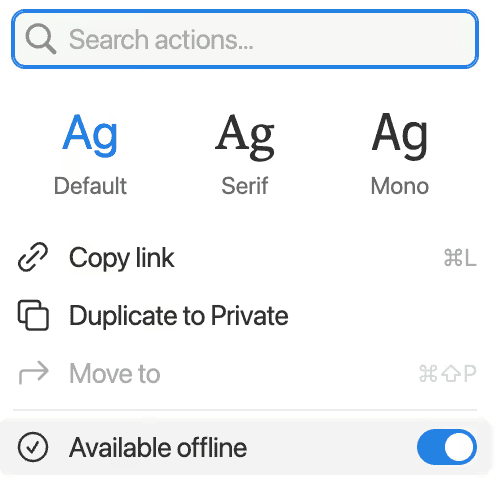
If you're on a paid plan, Notion automatically downloads your top 20 favorited pages and 20 most recently visited pages. On the free plan, everything is manual.
A few things worth knowing upfront:
- Desktop and mobile apps only. Offline mode doesn't work in the browser. If you use Notion exclusively in the browser, this feature doesn't exist for you.
- Per-device. Marking a page offline on your laptop doesn't make it available on your phone. You have to set it up separately on each device.
- Child pages don't auto-download. If you mark a parent page for offline use, its sub-pages aren't included. You have to mark each one individually — easy to miss one and find yourself with a broken hierarchy when you're actually offline.
You can manage all your offline pages from Settings → Offline in the desktop app.
What Works Well Offline
Credit where it's due — for basic writing and planning tasks, offline mode is solid. You can:
- Write and edit text, including formatting, headings, and lists
- Work with checklists, toggles, and most standard blocks
- Create new pages (they sync once you're back online)
- Search across your downloaded content
Notion's CRDT (Conflict-free Replicated Data Type) system handles text merge conflicts well. If you and a teammate both edit the same paragraph offline, Notion can usually merge the changes without losing either version. For solo use — taking notes on a flight, drafting a doc at a coffee shop with spotty Wi-Fi — it does the job.
What Doesn't Work (The Real Limitations)
This is where most guides stop at a bullet list and move on. But these limitations have real consequences if you rely on Notion for serious work.
The 50-row database cap
When you download a database for offline use, only the first 50 rows of the first view sync to your device. That's it. If you have a project tracker with 200 tasks, a CRM with 500 contacts, or a content calendar spanning the quarter — you're working with an incomplete dataset offline.
If you're on a flight and need to check your project tracker, you'll only see the first 50 rows. The rest simply don't exist on your device.
No AI features
Every AI-powered feature goes dark offline: AI blocks, AI meeting notes, Notion AI agents, etc. If AI has become part of your Notion workflow, you'll feel the gap immediately.
No embeds, forms, or buttons
Embedded content (YouTube videos, Google Maps, Figma files) won't load. Forms and buttons stop working entirely. If your pages rely on interactive blocks, they're effectively broken offline.
No file uploads
You can't attach documents, images, or any media while offline. If you're working on a page that needs screenshots or file attachments, you'll have to wait until you're back online.
No sharing or permissions changes
Collaboration features are completely frozen. You can't share a page, invite someone, or change permissions until you reconnect.
Wi-Fi only sync on mobile
On mobile, changes only sync over Wi-Fi — not cellular data. If you edit a page on your phone during a commute, those changes sit on your device until you connect to Wi-Fi. This trips up a lot of people.
The Data Safety Problem Most Guides Ignore
Here's where things get serious. Every other guide covers the feature limitations above, but almost none of them talk about what offline mode means for your data's safety. There are three specific risks worth understanding.
Sync conflicts can cause data loss
Notion's CRDT system handles text merges well, but text isn't the only thing in your workspace. Database properties — select fields, dates, relations, rollups — don't merge. When two people edit the same property offline, only one version survives. The other is silently overwritten.
In practice, this looks like: you update a project's status to "In Review" while offline, and a teammate changes it to "Done." When both devices reconnect, one of those changes disappears. No warning, no notification. Notion may also create duplicate pages with names like "Project Brief (Conflict)" when it can't reconcile the changes — which is better than losing data, but creates cleanup work and confusion.
Offline mode is not a backup
This is the misconception that concerns us most. Some users assume that downloading pages for offline use means they have a copy of their data. They don't — at least not in any meaningful sense.
The offline copy is a synced mirror. If the source page gets corrupted, accidentally deleted, or lost to an account issue, the offline copy doesn't save you. It syncs the destruction right along with everything else. And Notion only keeps page snapshots for 7 days on the free plan (30 days on paid plans) — after that window closes, previous versions are gone for good.
If your Notion workspace contains anything you can't afford to lose — client data, project documentation, a personal knowledge base you've built over years — you need actual backups stored outside of Notion. Automated backups to external storage (Google Drive, Dropbox, S3) are the real safety net. Notion Backups handles this automatically, so you don't have to think about it.
Best Practices for Working Offline
Offline mode is a useful productivity feature if you work around its constraints. Here's how to get the most out of it:
- Pre-download everything you'll need — including child pages. Don't assume sub-pages come along for the ride. Check your offline pages list before you disconnect.
- Reconnect regularly to reduce the window for sync conflicts. The longer you stay offline, the more opportunity for conflicting edits to pile up.
- Coordinate with your team. If multiple people need to work offline on the same content, agree on who edits what. This avoids the property-level conflicts that Notion can't merge cleanly.
- Stick to text editing offline. Text merges well. Database properties, select fields, and relations don't. Save the database work for when you're online.
- Keep your apps updated. Notion ships offline mode improvements frequently. Running an outdated version means missing bug fixes and performance gains.
- Don't treat offline mode as a backup strategy. Use a dedicated backup solution that stores your data independently of Notion's servers.
Back up your Notion workspaces today
Get startedFrequently Asked Questions
Does Notion work offline?
Yes, since August 2025. You need to mark individual pages as "Available offline" in the ··· menu. Paid plans automatically download your top 20 favorited and 20 recently visited pages. Offline access is only available in the desktop and mobile apps — not the browser.
Is Notion offline mode free?
Yes, all plans can manually download pages for offline use. Paid plans get the added convenience of automatic downloads for frequently used pages.
Does Notion offline work in the browser?
No. Offline mode requires the desktop app (macOS or Windows) or the mobile app (iOS or Android). Browser users don't have offline access.
Can I use Notion databases offline?
Partially. Only the first 50 rows of the first view sync offline. If your database has more than 50 entries, the rest won't be available. This is a known limitation that Notion has said they plan to address in future updates.
What happens if two people edit the same page offline?
Text changes merge automatically thanks to Notion's CRDT system. But non-text properties (select fields, dates, relations) don't merge — only one version survives. Notion may create duplicate pages with a "(Conflict)" suffix when it can't reconcile the differences.
Is Notion offline mode a backup?
No. It's a synced mirror, not an independent copy. If data is deleted or corrupted on Notion's servers, those changes sync to your offline copy too. For actual data protection, you need backups stored outside of Notion — on external storage like Google Drive, Dropbox, or S3.