Sync Notion to Google Sheets
Keep your Notion databases and Google Sheets in perfect sync.
Also, easily back up and restore your Notion workspaces.
No credit card required. 10-day free trial.
Set it up in minutes
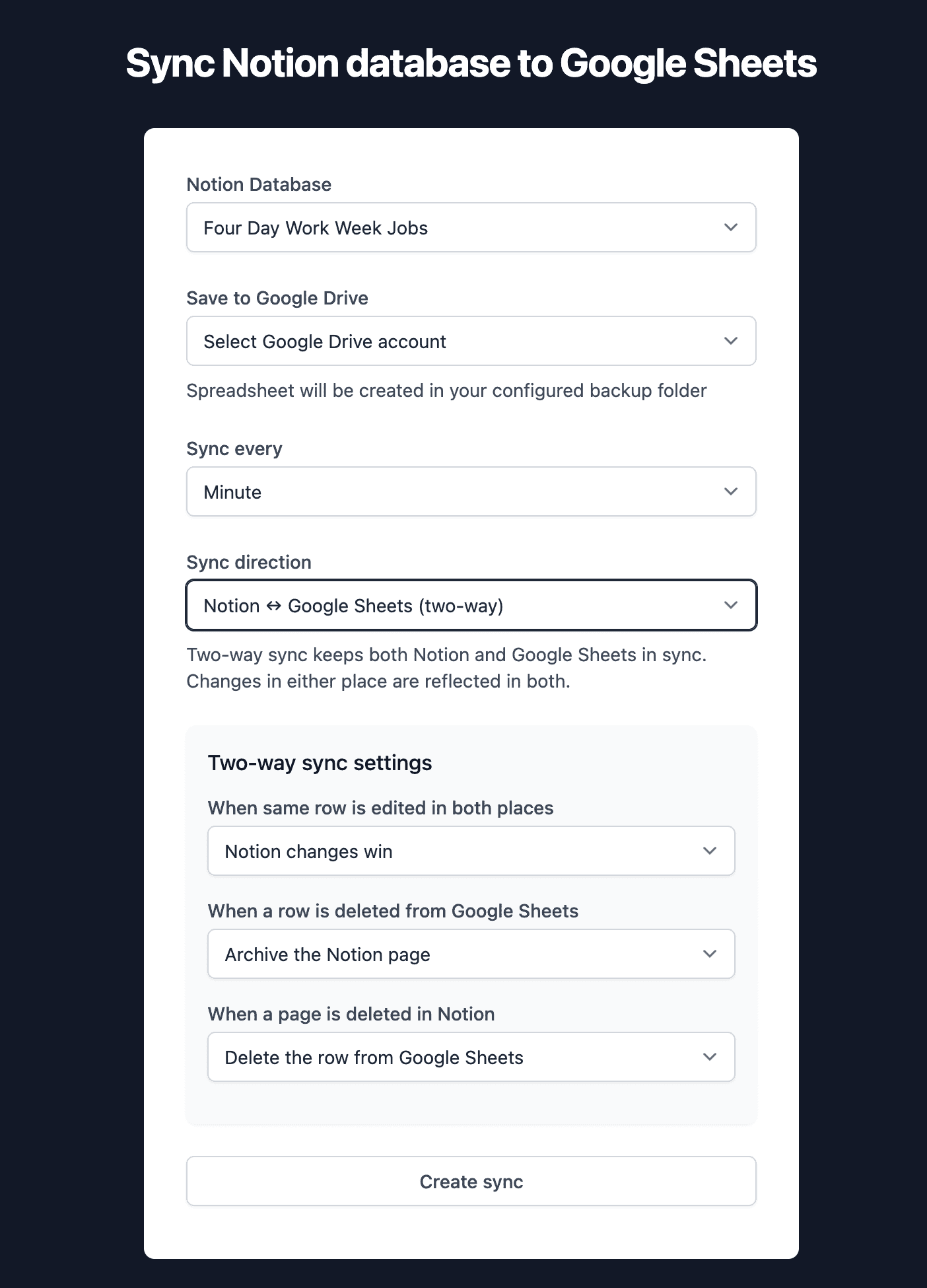
Pick a Notion database, choose your sync direction and frequency, and you're done. The spreadsheet is created automatically in your Google Drive.
- One-way or two-way sync
- Sync as often as every minute
- Configurable conflict resolution
One-way sync
Changes flow from Notion to Google Sheets. Your spreadsheet stays updated automatically while Notion remains the source of truth.
Perfect for reporting dashboards, sharing data with stakeholders who prefer spreadsheets, or creating backups of your databases in a readable format.
Two-way sync
Edit in Notion or Google Sheets and changes propagate to the other. Both stay in sync automatically.
Great for teams where some people prefer Notion and others live in spreadsheets. Everyone works in their favorite tool, and data stays consistent.
Changes flow both ways
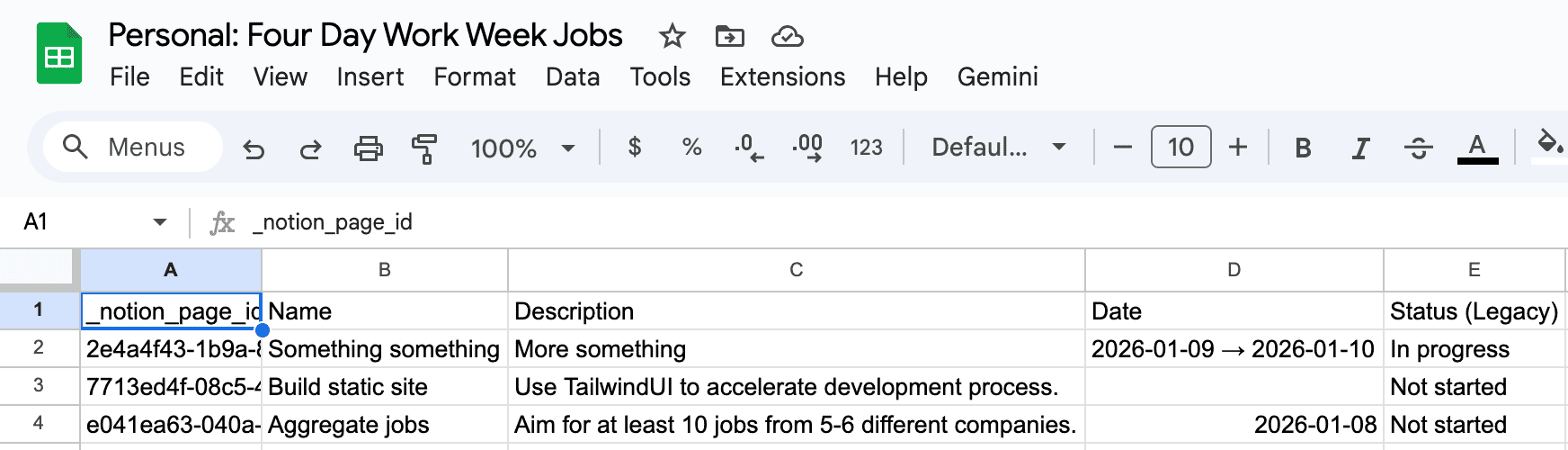
Your Notion data, right in Google Sheets
All your properties, preserved and formatted properly. Use formulas, charts, pivot tables, or share with anyone who has a Google account.
Each row shows a live sync status so you can see exactly when it was last synced and spot any issues at a glance.
You're in control
Configure how sync behaves when conflicts happen or data gets deleted.
Sync frequency
Every minute, every 30 minutes, or every hour. You decide how fresh your data needs to be.
Conflict resolution
When the same row is edited in both places, choose which version wins: Notion, Sheets, or skip the conflict.
Deletion handling
Control what happens when data is deleted on either side. Archive pages, delete rows, automatically recreate deleted Notion pages from your Sheet data, or ignore deletions entirely.
All your property types, supported
We handle the conversion so your data looks right in Google Sheets. Text, numbers, dates, checkboxes, multi-selects, and more.
More than just a sync tool
Google Sheets Sync is part of Notion Backups. You also get automated backups and one-click restores.
Notion Backups
- Google Sheets Sync included
- Automated backups of your entire workspace
- One-click restores when things go wrong
- One subscription, complete protection
Other sync tools
- Sync only, no backup protection
- No way to restore deleted data
- Single point of failure
- Pay separately for sync and backup
How it works
Connect Notion & Google Drive
Link your Notion and Google accounts. Complete your first backup.
Select a database
Choose which Notion database you want to sync.
Configure sync
Pick your direction, frequency, and conflict settings.
Done
Your spreadsheet is created and stays in sync automatically.
Frequently asked questions
- How do I get started?
- Connect your Notion workspace and a Google Drive account. Once your first backup is complete, pick a Notion database, choose your sync direction and frequency, and you're done. The spreadsheet is created automatically in your Google Drive.
- What's the difference between one-way and two-way sync?
- One-way sync pushes changes from Notion to Google Sheets only. Two-way sync keeps both in sync, so edits in either place are reflected in the other. Two-way sync requires read-write access to your Notion workspace.
- How often can syncs run?
- On the Pro plan, syncs can run every minute. On the Starter plan, you can choose between every 30 minutes or every 60 minutes.
- How many databases can I sync?
- On the Starter plan, you can sync up to 2 databases. On the Pro plan, there's no limit.
- Can I do a one-time Notion database export first?
- Yes. Try the free Notion to Excel converter to extract a visible public database view as .xlsx. For private databases, hidden properties, and recurring updates, use Google Sheets Sync.
- How it differs from other sync tools?
- Other sync tools only sync your data to Google Sheets. Notion Backups also protects your entire workspace with automated backups and one-click restores.
- What happens when the same row is edited in both places?
- You choose how conflicts are resolved: Notion wins (Notion's version overwrites Sheets), Sheets wins (Sheets' version overwrites Notion), or skip conflicts (leave conflicting rows unchanged).
- What happens when I delete something?
- You configure this separately for each direction. When a row is deleted in Sheets, you can archive the Notion page or ignore it. When a page is deleted in Notion, you can delete the Sheet row, mark it as archived, automatically recreate the Notion page from your Sheet data, or ignore it.
- Where is the spreadsheet stored?
- The spreadsheet is created in your Google Drive, inside your configured backup folder. You own it and can access it anytime.
- Do I need a separate subscription for Google Sheets Sync?
- No. Google Sheets Sync is included in your Notion Backups subscription (Starter plan and above). You also get automated backups and one-click restores.
- Can I automatically recreate deleted Notion pages?
- Yes. With the "Recreate the page in Notion" option, any page that's accidentally deleted or archived in Notion is automatically recreated from your Google Sheets data on the next sync. This is ideal when your spreadsheet is the source of truth.
- How do I know if a row synced successfully?
- Every row has a sync status column that shows the last sync time. Successfully synced rows show a green timestamp, while rows with errors show a red status with a brief description of what went wrong.
- What if sync keeps failing?
- For two-way syncs, we track consecutive errors and auto-disable sync after 5 failures to prevent issues. You can re-enable it from your settings once the issue is resolved.
Sync, backup, and restore. All in one.
Keep your Notion databases in sync with Google Sheets while also protecting your entire workspace with automated backups.
Start syncing your Notion databases today
Get started free10-day free trial. No credit card required.